Ads by Google

Wednesday, August 6, 2008

Jpgfdraw: drawing PGF figures

If you find PGF too difficult to learn and use, then Jpgfdraw may be the tool for you. It exports the drawn picture as a file containing a pgfpicture environment which can then be included in your LaTeX document.

The drawback as I see it, it requires java 1.5 or later to run the application. That's way too much HDD storage needed for a bit of laziness in learning pgf. But if you already have it installed, then this should be ideal for those quick drawings that need to included into your LaTeX document.

Monday, August 4, 2008

Latest Builds of the PGF manual

The pgf package which is one of my favourite LaTeX packages for drawing pictures is released rather infrequently. Meaning, you get to wait a pretty long time for new features that are added, tested and then bundled for a release.

In case you want to the latest, you need to check out the CVS code and the prebuilt manual is available from Kjell's site.

Kjell recently posted on the pgf mailing list about the availability of the latest pgf manuals.

Saturday, August 2, 2008

The SPAM's getting better but it's still getting binned

Every once in a while, I check my Spam folder on on my gmail mail account to see whether there has been any legitimate mail binned, as a result of a false positive match. So far I've rarely had any mail flagged apart from the marketing material sent in by the Mutual funds that I buy.

While scanning the folder, I noticed that the social engineering aspect of spam emails are getting better. If it had not been for the spam filter and my lack of interest in the same spam emails, I think there'd been a bunch of saps who'd got infected with malware or some dreck of some sort.


Take a look at the above screen shot. Topical, covering entertainment, Politics, Tech and Business, it should be enough to pique someone's interest. All he has to do is open the email to get infected with the attached payload or get directed to a website that will install some malware.
Spammers seemed to have moved on from the "inadequate body part/function" mails though there are lots of that too, in my spam folder.

Gmail seems to be doing a fairly good job at identifying and binning them, so that's one strike against the spammers.

But these scum will keep trying, you can bet on that. If only they spent their time on more productive enterprise.

Saturday, July 26, 2008

A graphical Tutorial of Emacs Rectangle commands

The Emacs rectangle commands operate on rectangular blocks of text. (Surprise?) This is useful when you're working on columnar text and you need to work on columns of data much like Microsoft Excel. Here, I'm going to show you how to use them using a few contrived examples. Let's say we have following text entered in the scratch buffer.

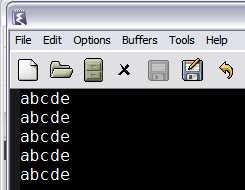


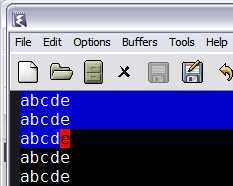
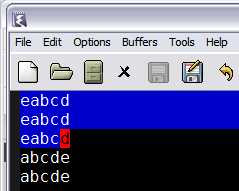
Mark a rectangular block of text using C-SPC from column 1 to the 4th column in line 3. You should see something like this.


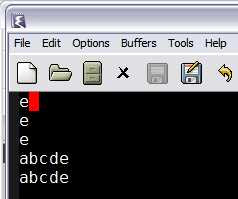
Now, this is a rectangle of 4Cx3R. On this you can operate any rectangle commands. The first is obviously kill-rectangle, bound to C-x r k. Applying that on the above state of the buffer you should see the following.
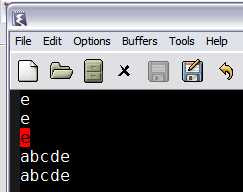
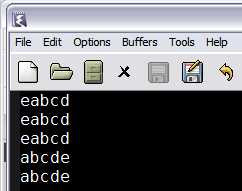
As you can see, the remaining text has been shifted to the left after killing the rectangular block of text. Since the text was killed as opposed to deleted which is bound C-x r d, the rectangular text is available to be yanked(pasted) in another place if required. C-x r y will yank the rectangular text back at point as shown.

The difference between kill-rectangle and delete-rectangle is that the former stores the killed text in kill rectangle ring while the latter doesn't.

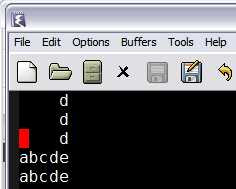
Right, what happens if you don't want to shift the text to the left but just clear out a block of text? Well, that's when you use clear-rectangle bound to C-x r c.
But if you want to push text to the right as opposed to clearing it, you'd use open-rectangle bound C-x r o.
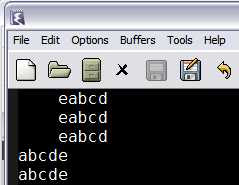
Note how the entire block of text is shifted rightward without anything getting deleted. So, if you wanted to enter text in the space, toggle the Overwrite key(to prevent the existing text from moving further rightward), fill in the text and toggle the key back again.

But, you say, I don't want to enter the same text in the columns over and over again. In fact you just want some standard text to be plugged in. No worries, you have C-x r t STRING to do that for you.
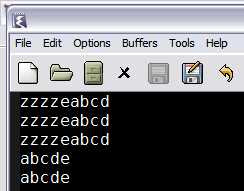
Mark the rectangular region as shown,
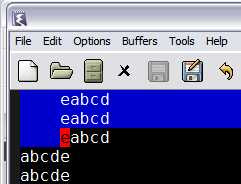
press C-x r t zzzz and you should see the above result. Useful for chunks of repeated columnar text when data is sorted by nationality, sex,currency etc. (which is pretty representative of textual data)

Oops, you forgot to insert an x in front of all the lines starting with z's?
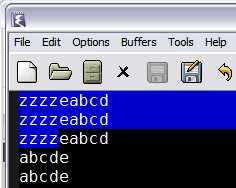


No problem, just follow the above instructions, you should see this then.
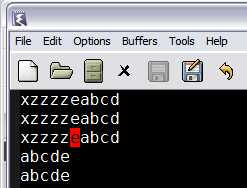
Notice that even though a 4x3 block was marked, the inserted text was only 1 character and still everything came out correctly? The same happens with text which is more than 4 in this case, the columns shift to the right.

The most common uses of the rectangle commands are those that involve aligning columnar data, inserting and deleting columns of data, applying standard texts and the like.

Hopefully, this tutorial addresses the existence of rectangles in Emacs and how to use them. The Emacs manual has a little bit more on rectangles and how to use them with registers too. The canonical place to refer is the manual when things deviate from what I've mentioned above.

Thursday, July 24, 2008

Using TikZ graphics in Powerpoint

Came across an useful thread on the comp.text.tex newsgroup on how to get your Tikz graphics into Powerpoint. This should be useful to those who are forced to use the Office tools even if the graphics output from Tikz is superior.

So, there are ways to get the pics into Powerpoint. The only drag is of course, editing it if there is a blooper in the picture. You'd have to go through the edit, compile, check, export and paste into Powerpoint every time to fix things.

Which is not exactly ideal.

Saturday, July 19, 2008

Leslie Lamport recepient of 2008 IEEE John von Neumann Medal

Leslie Lamport of LaTeX fame has been awarded the IEEE John von Neumann medal.

Couldn't have happened to a more deserving person.

Maximizing your screen real estate

One thing that you'd notice as you become more proficient in Emacs, is that how rarely you use the menus and tool bars. Depending on how frequently you use Emacs, a lot of the basic commands get hard wired into you.

And after a sufficient level of proficiency you tend to dive into the help system or the info manual to learn about of version control or ediff, say.

Then, it makes sense to use the real estate occupied by the tool bars and menu for editing. You'd get an extra 2 lines of editing text; golden, if you're using a cramped laptop or small desktop screen. On my laptop, I could always use more space,as I tend to use larger fonts in Emacs.

Adding

(menu-bar-mode -1)
(tool-bar-mode -1)


to your .emacs will nuke your menu and tool bars. Though, it does appear that Emacs looks a bit naked or like a badly designed application.

Don't worry, you'll get over it.

Monday, July 14, 2008

How not to learn Emacs!

Ever started learning Emacs and gave up?

How many times did you try?

Why?

Let me give you some reasons why Emacs learning appears to more difficult than it actually is. Basing your reasoning on one or more of the following, you're only prolonging the agony, stubborn and being ornery about it. In hindsight, it is no more and no less difficult than learning any tool.

It all boils down to, how much are you willing to unlearn and then relearn something basic? The following are all variations of the same theme over and over again.

  1. Emacs doesn't behave like vi or this/that editor. Of course it doesn't. Emacs behaves differently than most others editors in vogue currently. Every aspect of Emacs is pretty much guaranteed to be different from what you've generally used to with respect to your other editor. Obviously, not a modal editor; the GUI is skimpy when compared to the other editors; builtin interpreter; buffers and modes; weird help system; frames and windows et al.
  2. Emacs does not follow the Windows CUA UI standard of editing text. Yes, there is cua mode that provides these features but the default is certainly not one that Windows users are used to. Citing this as a reason has always been a bit puzzling for me. If vi users are way more legion than Emacs and they are willing to train themselves of h,j,k,l keys, there is some disconnect here. Why is Emacs more difficult than that? Yes, it can be incredibly frustrating with the copy paste actions that working on the Windows platform brings but it can be overcome. Trust me on that. I gave up initially because of the very reason. Too lazy to train my hunt-n-peck typing fingers to learn anew. But one day, once I made up my mind to figure out all things Emacs, I did not worry about this at all. Just took it for granted that C-y, M-y are the way to go.
  3. Emacs key-chording is weird. Again, a disconnect, people are willing to learn hotkeys, Windows shortcuts and the ilk but key chords? Emacs takes hotkeys to the extreme. :-)
  4. Emacs terminology is alien. A common complaint but if you're going to learn a new editor you might as well get used what IT is asking you to learn instead of trying to make it fit your world view. Once you learn the emacs terminology, then everything else will start falling into place. And soon you will be modifying Emacs to fit your world view.
  5. The Emacs help system is complex and bewildering to new comers. It only appears so; given time and patience in learning the tutorial and getting stuck, the help system will be a natural extension to working in any editing context. Combined with the info reader, it is simple, effective and gets what you ask for. Compared to other help systems from Borland, Microsoft, it is highly contextual given the way Emacs is crafted.
  6. Emacs use LISP. So? Not a frequent comment but I did hear it once when I remarked about it using Emacs-lisp builtin. And you can get by or defer learning or coming into contact with it as much as possible. The Emacs customize system tries to hide as much as possible for the lay user.

I should have started learning Emacs around 1996 thereabouts but ended up fulling committing to learning it only in 1999. Talk about inertia and excuses! All the above and variations is what I used. I learnt vi, nano, textpad, notepad+ or whatever, pfe or something and other editors. Finally got religion and converted to Emacs. And then when I tried to convert others, I ran into the same issues that I had.

I've noticed that the resistance is incredibly high for Windows users. The CUA stuff and the lack of shiny icons and the key chording makes it incredibly tough for them. But that is a hill that they have to climb themselves and encouragement is only that; encouragement.

If you have any of the hang ups as mentioned above, then it certainly is not the way that will get you proficient in Emacs. It only serves to limit your learning and enjoying the learning process.

Thursday, July 10, 2008

Adding Emacs to your Global Context Menu in Windows

If you are a windows user and want emacs to appear in the context menu, here's one way to do that. It involves tinkering with the registry and it creates a new instance of Emacs on every file you use it on.

Monday, July 7, 2008

Learning to use the Emacs keyboard macro system effectively

The Emacs macro system is probably the least used feature by newbies and intermediate users. Which is a shame as it's a really neat piece of code and the learning overhead is very small.

The latest versions of Emacs has the keys F3 and F4 mapped to start and end of the macro recording. And the next invocation of F4, runs the last created macro.

Recording a macro is easy. Hit F3 and start working. Of course, the idea of a macro is to do repetitive tasks and one needs to record the steps and apply it to the buffer text.

Here's where it is important to get things right.

One,don't worry about efficiency or the least number of keystrokes to achieve the task. Most times, the macros are one off and will rarely be suitable for another task later in the day or week. I've rarely had the chance to reuse any of the macros I've written. And every piece of "similar" text you receive, the odds are better that you do the macro from scratch again.

Second, use the emacs provided line commands instead of counting words, letters and spaces. Your macro is more robust if it is recorded in emacs contextual fragments i.e

C-a
C-e
M-f
M-e
C-n
C-j

etc.

Counting characters instead of using Emacs word boundary definition will lead you astray. Your macro will work for some cases and break in case of the others.

Three, once you get the hang of this, you can edit the macro by M-x edit-last-kbd-macro and delete/add additional corrections you want, and make it available by hitting C-c C-c to recompile the macro.

Try it on a couple of lines of text by hitting F4 and see where the point ends. That typically will tell you what happens if the results are not what you expected when you run the macro. You might have to add a C-n or C-j to move or create a newline.

Once you get the hang of simple macros, you can then move on to more difficult versions of the same. I've once used macros to copy stuff across 2 buffers back and forth. The more you use macros, the more natural it will be to use it for any and every repetitive tasks.

You'll find it really useful when editing UNIX shell scripts, data files and configuration files